1. Title¶
1.1. Check that title is in sentence case.
1.2. Check title spelling.
1.3. Check that capitalisation of scientific terms is correct. We suggest the you use the following procedure, if in you are in doubt regarding this or that term.
1.4. Check that following Latin terms are written in italics: in vivo, in vitro, in utero, in situ, via. For other Latin terms and gene names either italics or plain text is acceptable.
2. Author List¶
2.1. Check that all author names in author list are separated by commas (,). Last two author names in the list should be separated by “and” instead of a comma (,). No other separators allowed.
2.2. Check that there is no period (or any other punctuation mark) after the last author name.

2.3. Check the format of the author name.
Allowed formats:
- FirstName LastName
- FirstName MiddleName LastName
- FirstName MiddleName MiddleName LastName (there can any number of middle names)
- FirstName MN. LastName (MN. are initials of middle names; up to 4 letters)
- FirstName M.N. LastName (M.N. are initials of middle names; up to 4 letters)
- F. MiddleName LastName (F. is an initial of first name)
- F. MiddleName MiddleName LastName (F. is initial of first name and there can any number of middle names)
Important
As a general rule, we don’t want to keep initials for first names. Request the expanded name from the author in this situation. If the authors insist on a first initial, then the middle name(s) must be present and fully expanded.
LastName cannot be presented as initial (even if authors insist on this). LastName should always be presented in full.
Please note that last names can be compound, can have prepositions, suffixes, prefixes or be mononyms. For example:
- Compound last names: Garcia-Closas, Gomez Jimenez
- Last name related prepositions: Van den Brandt, van der Ent
- Suffixes: Williams 3rd, Rowland Jr
- Prefixes: McCann, O’Kelly
- Mononym: Govindjee
If you see that author name does not comply to these standards, please contact corresponding author and ask to provide author name in correct format.
2.4. Check that each author name contains a number linked to the affiliation text (i.e. affiliation number). One author name can contain a few affiliation numbers.
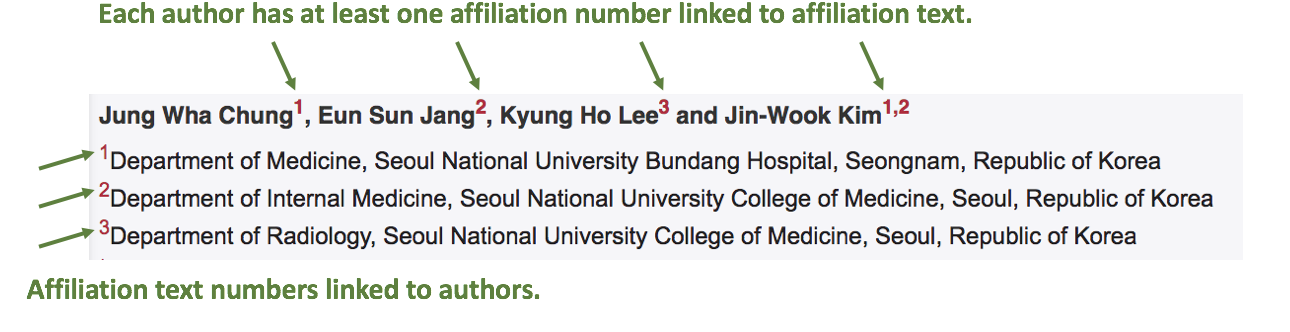
If there is only one affiliation text for all authors, then each author name should have “1” next to it.

2.5. Check that all affiliation numbers of the author are separated by commas (,). No other separator is allowed.
2.6. Check that all affiliation numbers of the author are formatted in superscript and colored in red. See below.

Note
Occassionally you can see a symbol (*, #, **, *** etc) next to the author name together with affiliation number. This symbol is related to Author Notes.
Author Notes checks can be found below.
3. Affiliation text¶
3.1. Check that each affiliation text contains separate text number. If you see an affiliation text containing more than one country, then it is a good indication that you see several affiliation texts grouped together. This should be corrected. As a rule of thumb: one affiliation text should have one number.

In case you find several affiliation texts for one text number, please contact corresponding author and ask to provide correct affiliation texts and author affiliation numbers.
3.2. Check that affiliation text number is formatted in superscript and colored in red.
3.3. Check that there are no separators between affiliation text number and affiliation text itself (space is allowed).

3.4. Check the format of the affiliation text. Authors are free to provide affiliation texts having any elements (e.g. University, School, Department, Lab, Hospital, etc) in any sequence they like. However certain rules apply to affiliation texts:
- Check that affiliation text contains at least 2 sections:
1. Deparment and/or division and/or lab and/or school etc.2. InstitutionNote that there can be affiliations for non-academic institutions (such as companies). In such cases, “institution” part of affiliation text should contain just a company name.
- Check that NO street addresses and house numbers are included in affiliation texts.
- Check that both country and city names are present in affiliation texts.
- Check that country and city names are NOT written in all CAPS (capital letters).
- Check USA states. Both full names and abbreviations (two capital letters) are allowed. However, they should be used consistently: either all affiliation texts have all states abbreviated or all states are spelled out.

- Check zip codes. Zip codes are optional element of affiliation texts. However, they should be used consistently: either all affiliation texts have zip codes or none.
If one or more affiliation texts does not have zip code, then remove zip code from all texts.
- Check that only commas are used to separate parts of affiliation text. No other separator is allowed. Zip code can be separated from state or city name by space (however it should be used consistently: either space used for zip codes in all affiliations or in none).
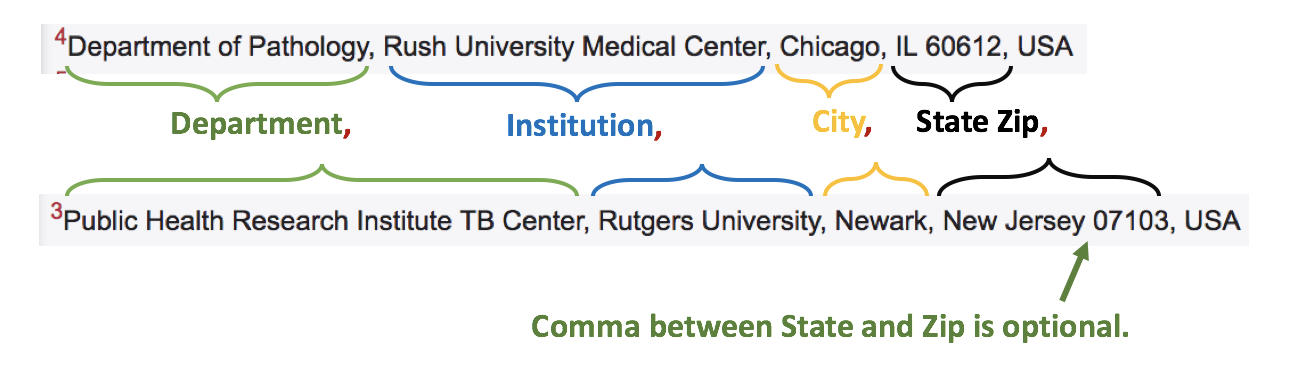
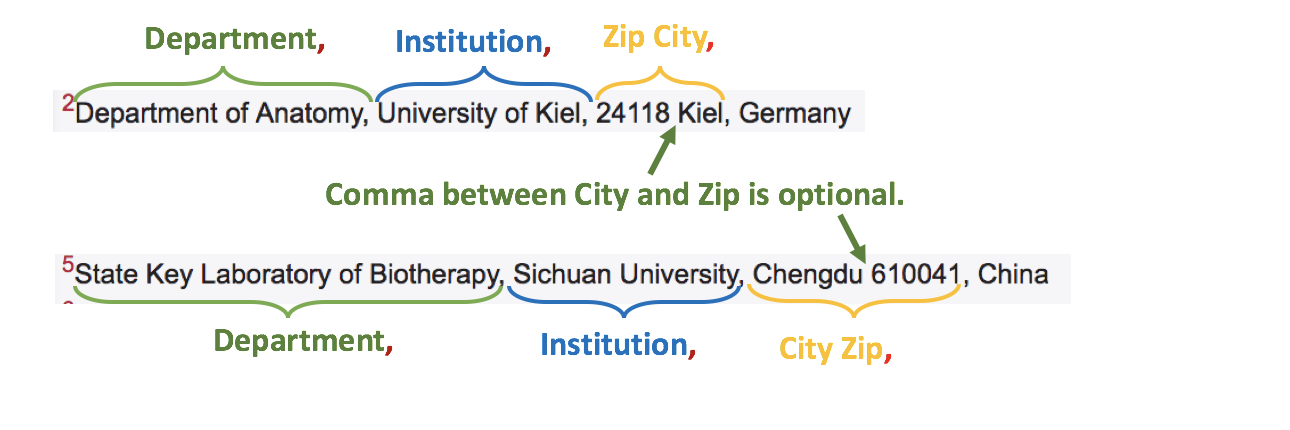
3.5. Check for words “Current address:” or “Present address:” at the beginning of affiliation text. Only these 2 options are allowed (alternatives like “Current/Present address:” are not allowed). “Address” should be followed by colon (:). Affiliation text containing “Current address:” or “Present address:” should have affiliation text number (not symbol).

3.6. Check that there are no punctuation marks at the end of affiliation line(s).
4. Author Notes¶
Author notes are optional. Article can have several or none author notes.
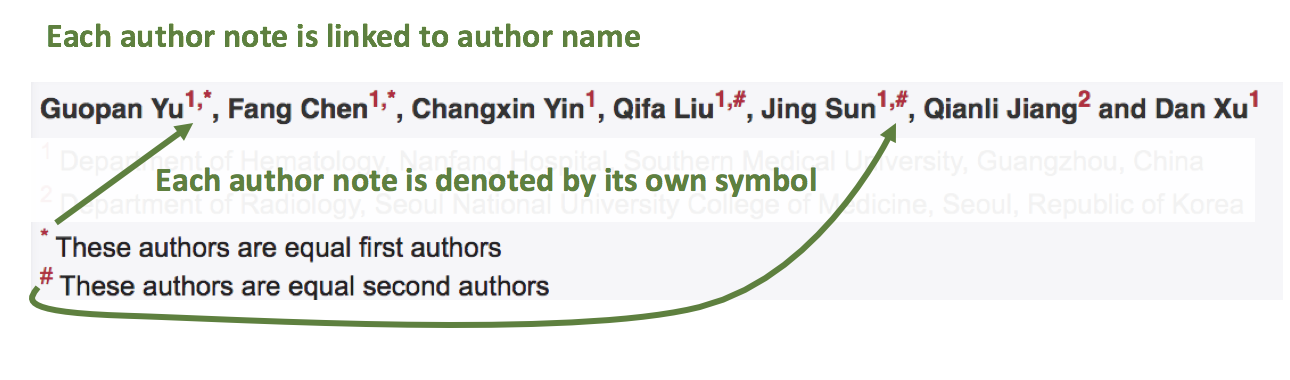
4.1. Check that author notes are denoted by symbol (no numbers allowed). It can be any symbol, but most often used are: *, †, +, #, **, ***. If there are several author notes, then each note should have different symbol.
4.2. Check that author notes line is written in sentence case.
4.3. Check that there are no punctuation marks at the end of author notes line.
4.4. Check that author notes symbols are formatted in superscript and colored in red.
4.5. Check that author notes symbol is present next to author name(s).
5. Correspondence¶
5.1. Check that correspondence section has a title “Correspondence to:”. It should start with capital letter and be followed by colon (:).
5.2. Check the format of correspondence line. There can be one of few correspondence lines this section.
- Check that name of author in correspondence line(s) fully matches name in author list (it should be exact match, i.e. middle name initials should also match, if present).
- Check that author name does NOT contain titles and/or degrees (e.g. Dr., Ph.D., M.D., etc.).
- Check that correspondence line consists of the following elements in the following order:
Author Name, email: email@address.com
- Check that there are no commas (,) or “or” or other separators between several correspondence lines:
Author Name One, email: emailone@address.comAuthor Name Two, email: emailtwo@address.com
- Check that email addresses are separated by a comma, if one author has few email addresses:
Author Name, email: emailone@address.com, emailtwo@address.com
- Check that email address is hyperlinked.
6. Keywords¶
6.1. Check that keywords section has a title “Keywords:”. It should start with capital letter and be followed by colon (:).
6.2. Check the format of the keywords line:
- Check that keywords are written in lower case, unless proper nouns. Check that capitalisation of scientific terms is correct. We suggest the you use the following procedure, if in you are in doubt regarding this or that term.
- Check that keywords are separated either by commas (,) or semicolons (;). However use of separators should be consistent: either all keywords are separated by a comma or by a semicolon. Separators cannot be mixed.
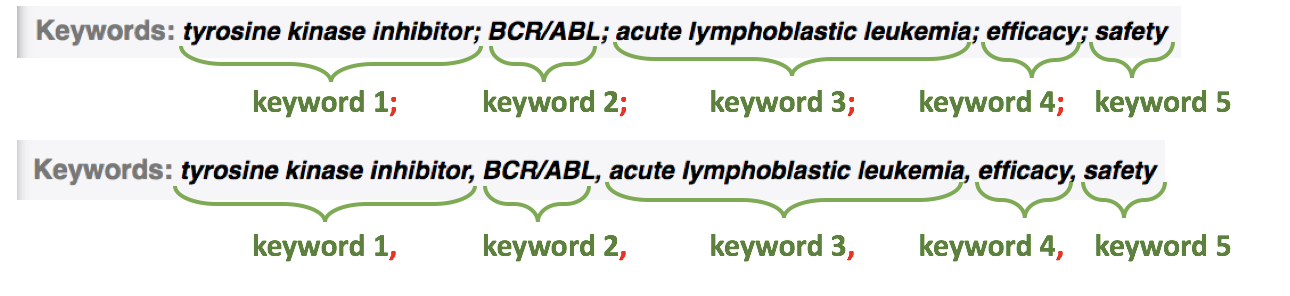
- Check that article has at least 1 and not more than 5 keywords.
- Have a look at TOC Section Title to check whether article belongs to Special section. If Section Title contains any of the words in “Special Section” column of the table below, then it belongs to the Special Section.

If article belongs to Special Section, then in addition to 5 general keywords article must have ALL special-section-related keywords. Corresponding keywords you can find in the table below.
Special Section Keywords Pathology Pathology Chromosome Chromosome Gerotarget (Focus on Aging) Gerotarget Autophagy Autophagy Neuroscience Neuroscience Immunology Immunology
- Check that there are no punctuation marks at the end of keywords line.
7. Abbreviations¶
Abbreviations are optional.
7.1. Check that abbreviations section has a title “Abbreviations:”. It should start with capital letter and be followed by colon (:).
7.2. Check the format of the abbreviations line:
ABRVTN: expanded text; ABRVTN: expanded textABRVTN, expanded text; ABRVTN, expanded textorexpanded text: ABRVTN; expanded text: ABRVTNexpanded text, ABRVTN; expanded text, ABRVTN
- Check that abbreviation part is written in all CAPS and expanded part is in lower case letters (except for proper nouns).
- Check that abbreviation part is separated from expanded part either by a comma (,) or a colon (:). No other separators allowed.
- Check that abbreviation pairs (i.e. abbreviation and corresponding expanded text) are separated from each other by semicolons (;). No other separators allowed.
- Check that there are no punctuation marks at the end of abbreviations line.
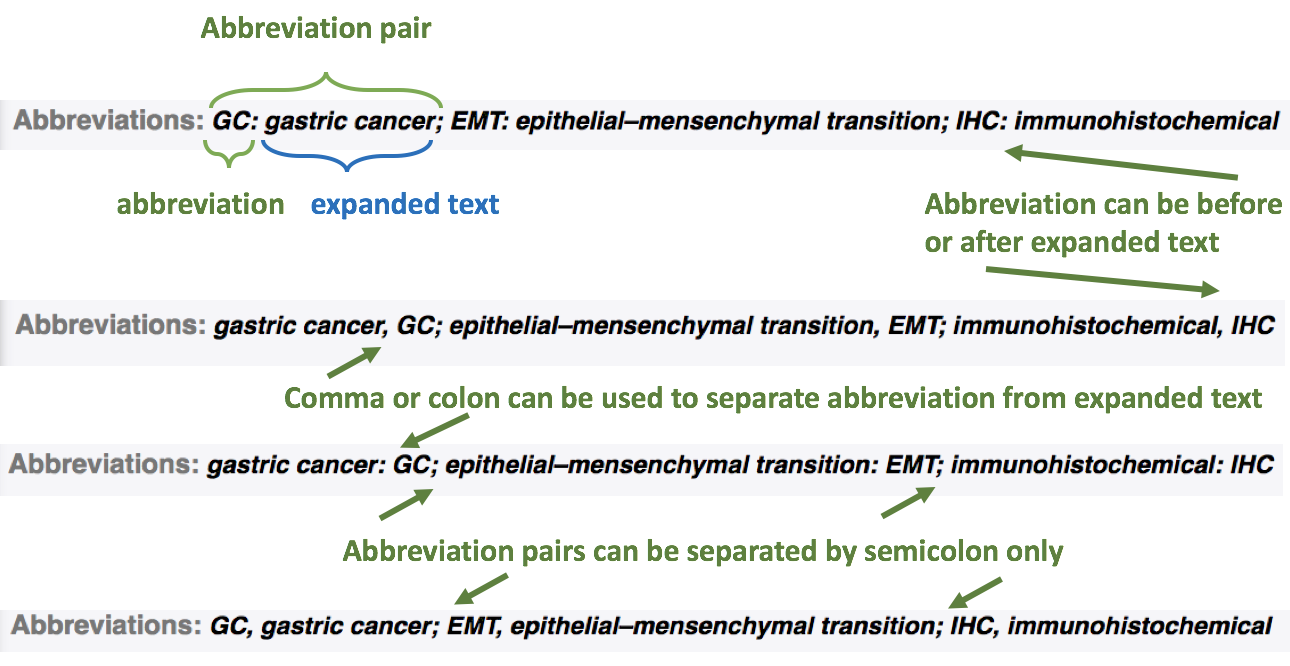
7.3. Check that there are not more than 5 abbreviation pairs. If there are more than 5 pairs, ask Production to move all abbreviations to the article text as an “Abbreviations” section.
8. Dates¶
8.1. Check that dates section has titles “Received:”, “Accepted:”, “Published:”. They should start with capital letter and be followed by colon (:).
8.2. Check the format of each date:
Check that date has the following format:
Month Day, Year
Check that Month is spelled out, and Day and Year are presented as digits. Note that single Day digits should be preceded by 0 (zero).
Example:June 02, 2017August 29, 2016
- Check that there is a comma (,) between Day and Year.
- Check the spelling of the month.
- Check that dates are written in italics.
Note
Published date is intentionally left blank. If you see Published date populated - ignore it. Do not request to correct or delete it.

- Check that Received date is older than Accepted date, and Accepted date is older than Published date (i.e. we cannot publish before we accept, and cannot accept before we receive).